








Floating Notification
Part of the Styling with CSS section of Coddy's HTML journey. Lesson 76 of 76.

Challenge
EasyIn this challenge, you will recreate a floating notification that looks like the image below (or a similar design). This is a recap exercise, so you will apply what you've learned about CSS positioning to correctly place the notification and its close button.
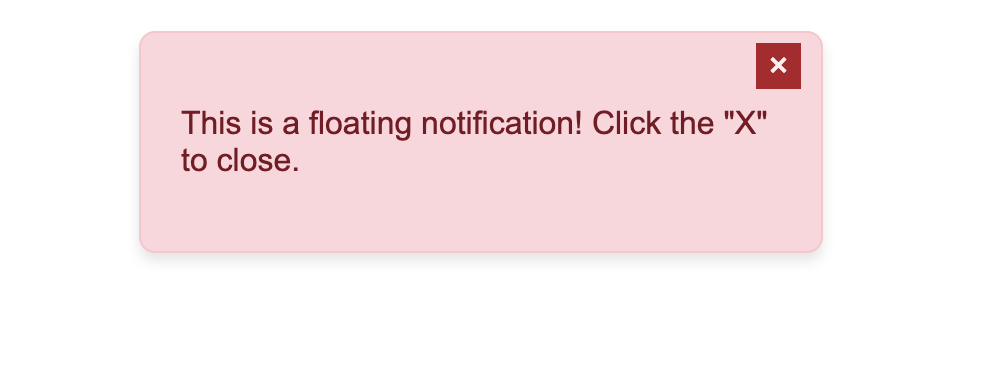
Follow the steps below to style the floating notification:
1. Style the notification box:
- Place it near the top of the page, roughly in the middle.
- Set a fixed width and add some spacing inside.
- Use any colors for the background, font, and borders to create a distinct alert style.
- Add rounded corners and a slight shadow to make it stand out.
2. Style the close button:
- Use
position: absoluteto place the close button in the top-right corner of the notification container. - Choose a background and adjust the font size.
- Make sure it looks clickable and stands out from the background.
💡 Experiment with colors, spacing, and positioning to achieve the desired design!
Try it yourself
<html>
<head>
<title>Floating Notification</title>
<link rel="stylesheet" href="styles.css">
</head>
<body>
<div class="notification">
<button class="close-btn">×</button>
<p>This is a floating notification! Click the "X" to close.</p>
</div>
</body>
</html>All lessons in Styling with CSS

5 Colors and Backgrounds
Background ColorHEX ColorsRGB ColorsTransparency with RGBARecap Challenge #1Practice on your own: Web playground